Annotations
To add an annotation to the map, on the Interactive Map Action toolbar, click the Add Annotation icon ( ). Click on the map where you would like the annotation to be placed. In the Annotation box, enter the text you’d like added to the map. Click Add.
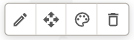
Click on the annotation text to bring up the following options:
-
Edit Text: Update the existing annotation text
-
Move: Click the location on the map you’d like the annotation moved to (If the annotation doesn’t move, click the escape key twice, and then repeat the process)
-
Style: Update the text color and size
-
Delete: Delete the annotation