Theme Manager: Specify a Subtotal Method, Number of Ranges, Sort Column, and Sort Order
On the Theme Manager pane similar to the one shown below, specify the following: the theme variable, a subtotal method, the number of ranges that you want to show, the measure you want to use as sort column, and your preferred sorting order, and color scheme.
Click Create Theme to display the theme on the interactive map.
NOTE: Some of the prompts such as Subtotal Method, Number of Ranges, Sort Order and Sort Column are not available for Point Change In Value theme.
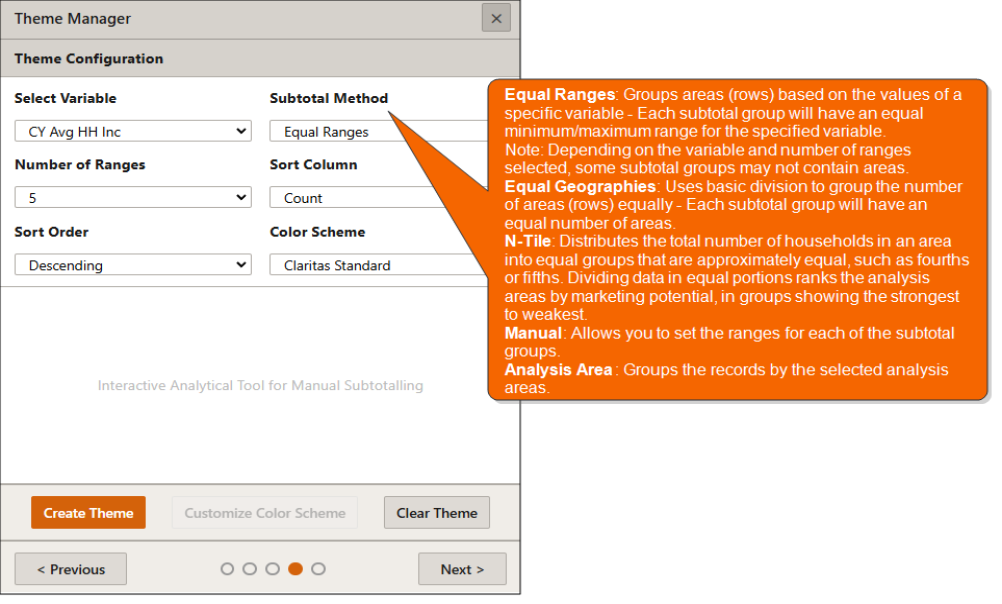
(Optional) Once the theme has been created, theme ranges can be adjusted by dragging the slider or clicking to adjust the max value(s). The specific colors in your selected color scheme can be updating by clicking the Customize Color Scheme button.
To remove your thematic map, click Clear Theme.
(Optional) If you want to save your theme settings, click Next .
To Learn More:
 View Detailed Steps
- On the Theme Manager pane similar to the one shown above, in the Select Variable drop-down list, select the theme variable that you want to use.
Note: If you are creating a Point Change in Value theme, there will be no sort/subtotal selections to be made. - If you selected Color Range or Point Color Range as theme type, do the following:
- In the Subtotal Method drop-down list, select your desired method for breaking the overall area into sections. The options are:
- Equal Ranges: Uses basic division to group the number of areas (rows) equally using the ranges of a specific column of data.
Note: Depending on the variable and number of ranges selected, some subtotal groups may not contain areas. - Equal Geographies: Uses basic division to group the number of areas (rows) numerically. Use this subtotal method to divide your analysis area into an equal number of rows (ZIP Codes, states, etc.), sorted by any column.
- N-Tile: Distributes the total number of households in an area into groups that are approximately equal, such as fourths or fifths. Dividing data in equal portions ranks the analysis areas by marketing potential, in groups showing the strongest to weakest. This option is available only if you selected Color Range as your theme type.
- Manual: Lets you customize your subtotal method.
- Analysis Areas: Groups the records by the selected analysis areas.
If you selected Equal Ranges, Equal Geographies, N-Tile or Manual, specify the number of ranges you’d like included in the theme.
If you selected Analysis Area, specify how you would like to display and calculate data for each duplicate geography. The options are:- Only Once: The report output will not contain any duplicate records (geographies).
- In Subtotals Only: The report output will contain any duplicate geographies in the subtotals, but not the total.
- In Totals Onlys: The report output will contain duplicate geographies in both the subtotals and total.
- Equal Ranges: Uses basic division to group the number of areas (rows) equally using the ranges of a specific column of data.
- In the Number of Ranges text box, specify your desired number of subtotal breaks.
- (Optional) If you selected Color Range as your theme type, the Sort Column option becomes available. In the Sort Column drop-down list, select the measure that you want to use as the basis for sorting. The options are:
- Count: A number based on the selected standard or custom variable.
- Base Count: The total number of households/population/businesses in the selected extent. The base count will vary depending upon the variable selected.
- Base % Comp: The percentage of each area’s households/population/businesses compared to the total for all areas.
- % Comp: The percentage of the selected variable's counts in an analysis area compared to the selected variable's counts for all analysis areas.
- % Penetration: The percentage of customer households that fall within a specified category compared to the total number of households (base count).
- Index: Compares the proportion of households that fall within a specified category (% Comp) compared to the proportion of all households in the segment (Base % Comp).
- In the Sort Order drop-down list, specify whether you want to sort the data in Ascending or Descending order.
- In the Subtotal Method drop-down list, select your desired method for breaking the overall area into sections. The options are:
- In the Color Scheme drop-down list, click your desired color design to use in your thematic map.
- Click Create Theme.
- Click Create Theme.
- (Optional) To customize the colors in your selected color scheme or design, do the following:
- Click Customize Color Scheme. The Customize Color Scheme pop-up window appears.
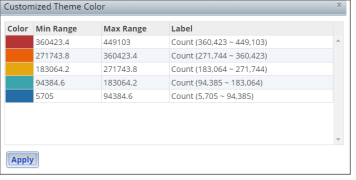
- Click the color that you want to change. The Theme Style Editor pop-up window appears.
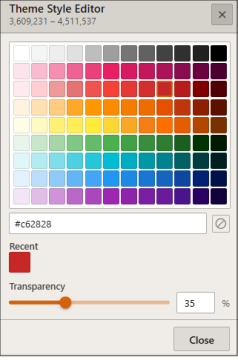
- Click your desired color and then click Close. Your selected color appears in the Customized Theme Color window.
- Repeat Steps b and c to change additional colors.
- After completing your color changes, click Apply. Your new colors appear on the Interactive Map
- (Optional) In the Theme Name text box, type a name for your theme.
- (Optional) To remove your theme from the Interactive Map click Clear Theme.
- Review your selections and then click Next to proceed.